Fast conversion
Convert a single shot or a whole batch in seconds.

HEIC to JPG in seconds, without uploading anything.
iPhone photos saved as HEIC won't open everywhere. Convert them to universally supported JPG or PNG in a few taps: in batches, at original quality, entirely on your device.
iPhone · iPad · Android
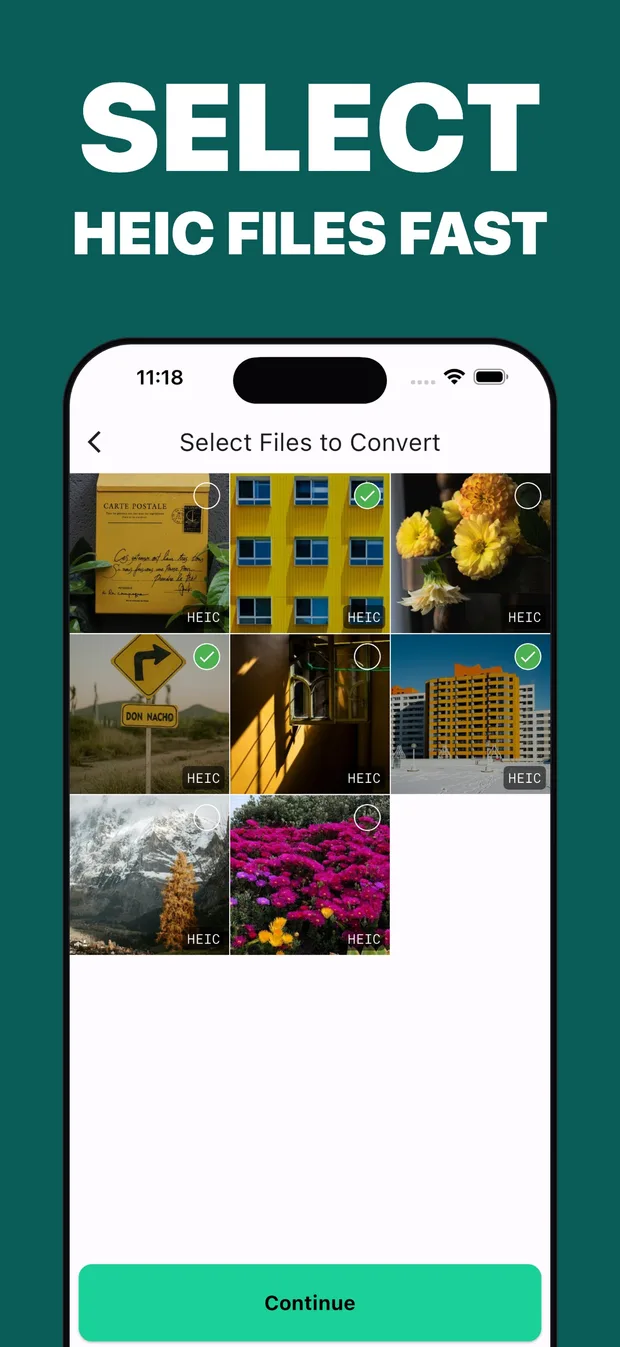
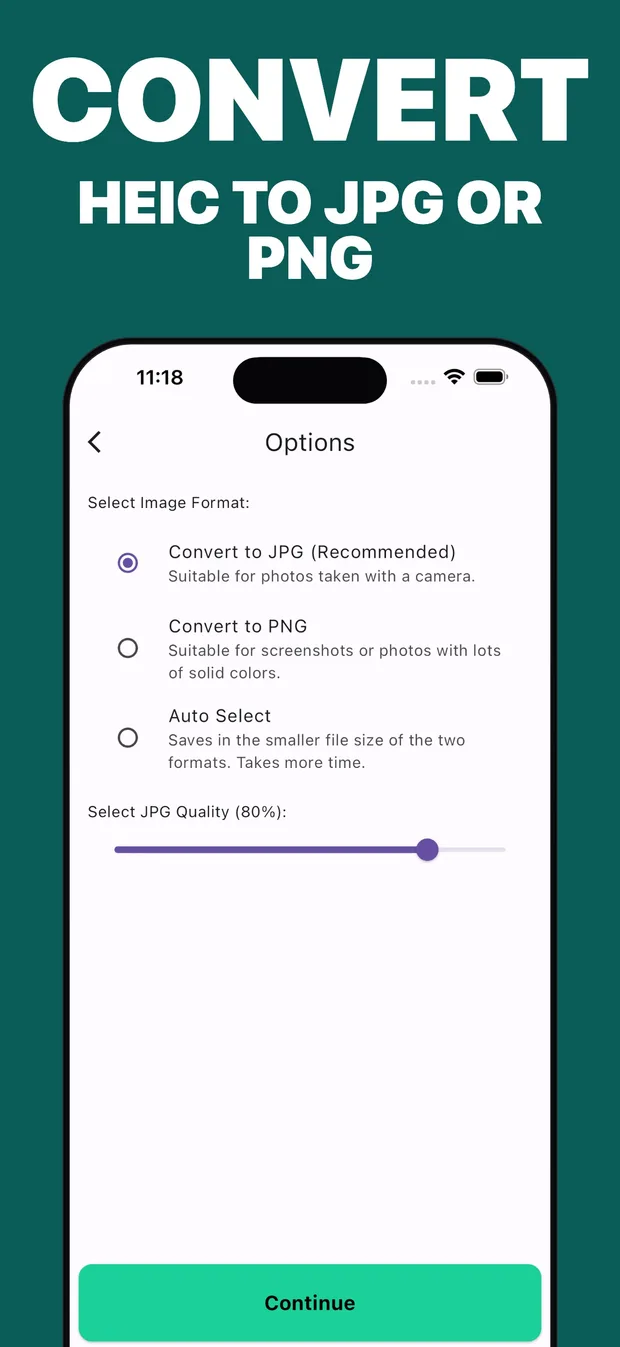
Convert a single shot or a whole batch in seconds.
Photos are converted on your phone and never uploaded anywhere.
Keep resolution and detail through the conversion.
Pick photos, choose JPG or PNG, done. No account, no watermarks, no upload queue.
Select dozens of HEIC photos and convert them all at once.
Choose the format the destination actually accepts.
All processing happens on your device, and nothing is uploaded.
Conversions keep the original resolution and color detail.
Send converted photos straight to mail, chat, or cloud drives.
On-device conversion means no upload or download time.
Select one photo or an entire batch from your library.
Convert to JPG for compatibility or PNG for lossless output.
Save back to your library or share directly to any app.
Older Windows versions can't open HEIC, but JPG works everywhere.
Job portals, government forms, and older sites often accept only JPG or PNG.
Photo printing kiosks and shops usually expect JPG files.
Since iOS 11, iPhones save photos in HEIC by default. It is genuinely a better format: about half the file size of JPG at the same visual quality, which is why Apple adopted it. The problem is the rest of the world. Windows PCs without extra codecs, older websites, government upload forms, photo kiosks, and plenty of Android apps still expect JPG or PNG, and they greet your HEIC file with an error.
That leaves you converting photos at the worst possible moment: when someone is waiting for the file. This app makes that moment short. Open it, select the photos (one or a hundred), pick JPG or PNG, and share the results directly. Because everything runs on your device, there is no upload wait, no server privacy question, and no “file too large” limit. It works in airplane mode.
JPG or PNG? Use JPG for photos you are sending or uploading, since it is smaller and universally accepted. Use PNG when you need lossless quality or transparency support, such as graphics and screenshots destined for editing.
If you handle other image chores on your phone too, the studio also makes a free JPG ⇄ PNG converter that runs in your browser, and Photos to PDF for turning photo sets into documents, all built on the same on-device, no-upload principle.
HEIC (High Efficiency Image Container) is the photo format iPhones use by default since iOS 11. It stores photos at about half the file size of JPG with the same quality, but many apps, websites, and Windows PCs cannot open it.
Windows needs paid codec extensions to open HEIC files, and many older programs never support it. Converting the photo to JPG makes it open on any device or website.
The app converts at maximum quality settings, so the difference is not visible in normal use. If you need pixel-perfect lossless output, convert to PNG instead.
Yes. Select an entire batch of HEIC photos and the app converts them together, which is useful when you need to hand over a whole album.
No. Conversion runs entirely on your device. Nothing is uploaded, which also means it works offline and there are no file-size limits.
Yes: in Settings, choose Camera, then Formats, then select Most Compatible to shoot JPG directly. Keep in mind JPG files take roughly twice the storage, which is why many people keep HEIC and convert only when needed.
Efficiently converts HEIC photos to JPG or PNG format on-the-go with lightning-fast conversions